
This view contains specific application information that is stored in your workspace and will be synced with Intune or MECM when you click on the Upload to Intune or Upload to MECM action buttons.
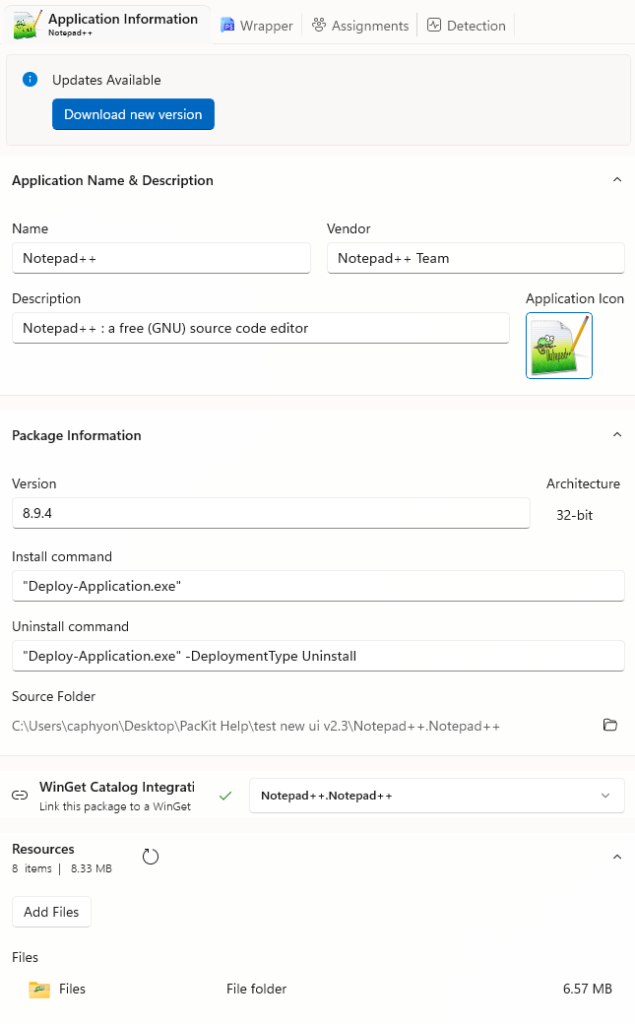
Application Name and Description
Name
The name of the application.
Vendor
The name of the software company that created the application.
Description
A description of the application. It will be visible to end-users in the company portal when the application is assigned as available.
Application Icon
Specify the application icon. For some applications, the icon is automatically extracted from the package or from other open sources on the internet.
Package Information
This section contains specific package information that is stored in your workspace and will be synced with Intune or MECM when you click on the Upload to Intune or Upload to MECM power buttons.
The first time you add a package to the workspace, this information must be customized by you. Some elements will be automatically filled in with information from the package or the package repository.
Once you have configured the package information, you no longer need to ever re-enter this information. PacKit will save and re-use it every time you update and upload your application to Intune or MECM, saving you time and avoiding error-prone scenarios where a single deployment is broken due to incorrectly copied configurations.
Version
The version of the package.
Product Code
The product code of the package is displayed (only for .msi packages)
Architecture
The architecture of the package is displayed (e.g., x86)
Install command
The command line is used for the package installation.
Uninstall command
The command line used for the package uninstall.
Source Folder
The path on the disk for the package.
Winget Catalog Integration
This feature will search for your package in the Winget gallery and if it finds it, will link it to the Winget entry, so future updates can be received.
Resources
In this section, the package files are displayed. You can add resources to the package by using [Add Files…] button.
Files
A list of all files and folders contained by the package.
